**Get expert EHR advice today →
At 7:12 a.m., you get a text: your lab results are ready, but you’re not sure where to look. If you want to use MyChart at Hackensack Meridian Health without guesswork, this guide shows how.
You’ll set up your account, sign in on the web or phone, and use it to see results, book visits, message your care team, refill meds, and pay bills. In 2026, this is the fastest way to stay on top of your care at Hackensack Meridian Health.
Moreover, here’s the straight answer you came for: create your MyChart account, download the mobile app, turn on two-factor login and notifications, then use the “Visits,” “Test Results,” “Messages,” “Medications,” and “Billing” tabs for your day-to-day needs. As a result, you’ll save calls to the front desk and get updates as soon as your care team signs them off.

What Is MyChart and How Does Hackensack Meridian Health Use It?
MyChart is a patient portal built on Epic’s electronic health record. At Hackensack Meridian Health, it’s your secure place online to see your health info and talk with your care team. You can check labs, book visits, send questions, and pay bills in one spot. If your doctor uses Epic in the clinic or hospital, the details you see in MyChart come straight from your medical chart.
In practical terms, you log in with a username and password. Then you use a clean menu to reach your goals. For example, you can book or change an appointment without calling. You can also open test results with clear flags for normal or out-of-range values. Furthermore, your visit notes may appear under “Notes” (also called Open Notes), which helps you remember the plan you agreed on.
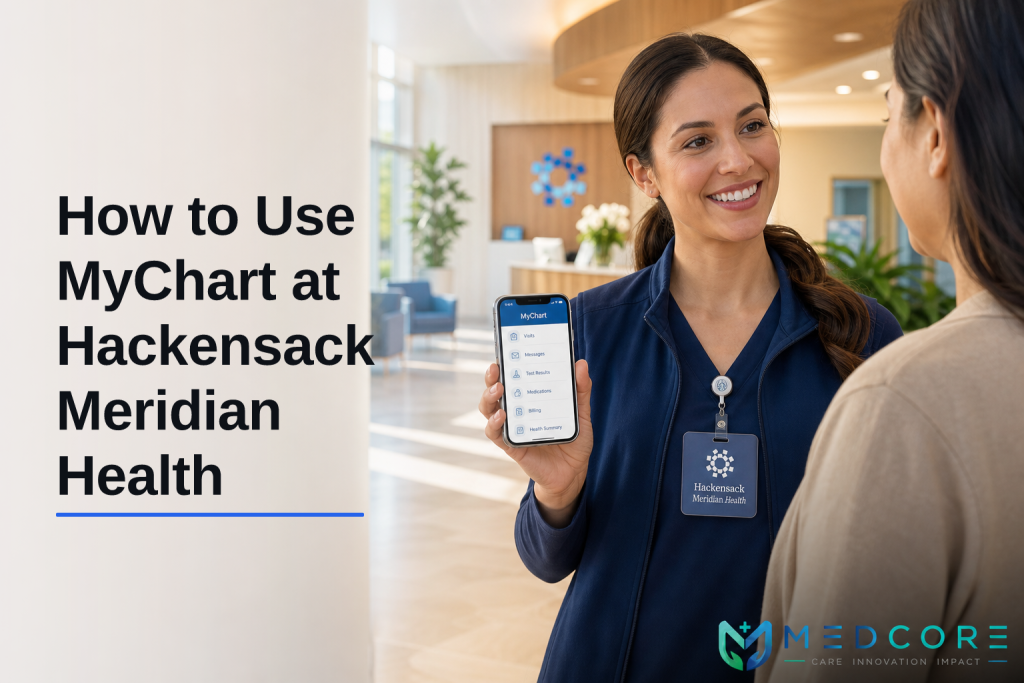
Hackensack Meridian Health ties key tasks to five core tabs you’ll use the most:
- Visits: Schedule, reschedule, or join a virtual visit.
- Test Results: See labs, imaging reports, and trends.
- Messages: Send non-urgent questions to your care team.
- Medications: Request refills and review instructions.
- Billing: View statements, add insurance, and pay.
Additionally, MyChart helps with paperwork. You can e-sign forms before your visit and update your medical history. As a result, your check-in is quicker on the day of care.
To make the most of it, turn on notifications. Then you’ll get alerts when results post or your clinician replies. We’ll cover setup next so you can use mychart hackensack meridian health with confidence from day one.
A quick note on Open Notes
Open Notes means you can read your clinician’s notes after a visit. This helps you recall details and share accurate info with family. If you don’t see notes, ask your office if they share them.
“Our OPD wait time dropped from 40 minutes to 12. The live token display alone was worth the switch.” — Dr. Meera Rao, Medical Director, Asha Hospital
Also Read!
Step-by-Step: Setting Up and Using MyChart Hackensack
Here’s the easiest path from zero to daily use. Follow these five steps in order so nothing breaks later.
1) Get your activation code
First, ask for an activation code at your visit or from the front desk. If you missed it, request one online through the “Sign Up Now” page on mychart.hackensackmeridian.org. You’ll need your name, date of birth, and a phone or email they have on file. If your info doesn’t match, call the office to fix it before trying again.
2) Create your account on the official site
Second, go to mychart.hackensackmeridian.org and select “Sign Up Now.” Enter your activation code, create a username and strong password, and confirm your contact details.
Then set up two-factor authentication (text, call, or authenticator app). Therefore, even if someone knows your password, they can’t get in without the code.
3) Download the mobile app
Third, install the MyChart app on your phone. In the app, search for “Hackensack Meridian Health” to link your account. Then log in. In addition, open Settings and enable push notifications for messages, results, and appointments.
This ensures you hear the “ding” the minute your care team responds. If you’ve used another Epic portal before, the layout will feel familiar. For a helpful walk-through of similar steps, see our comparison in How to Use Montefiore MyChart: A Complete Patient Guide.
4) Link family accounts with proxy access
Fourth, set up proxy access if you manage care for a child, parent, or partner. In MyChart, go to “Friends and Family” (or “Share My Record”) and follow the prompts. You’ll share access with the right permissions.
For minors, rules change at certain birthdays. Therefore, if access flips or details hide, it may be due to privacy laws tied to age. If that happens, call the office for guidance.
5) Learn the daily flow: the five tabs you’ll use
Fifth, practice the tabs you’ll tap the most:
- Visits: Tap “Schedule an Appointment,” choose a location and reason, then pick a slot.
- Test Results: Open “Results,” tap an item, and read the summary and full report.
- Messages: Use “Send a message,” pick your doctor or clinic, write a short subject, include details, and attach images if allowed.
- Medications: Hit “Refill” next to a listed drug; confirm your pharmacy.
- Billing: Add an insurance card photo, check a balance, and pay with a saved method.
 activation code request, 2) website signup with 2FA, 3) mobile app search for “Hackensack Meridian Health”, 4) proxy access for family, 5) tabs for Visits/Results/Messages/Medications/Billing; friendly icons and arrows)
Moreover, bookmark the login page on your browser and keep Face ID or fingerprint sign-in on your phone. As a result, you’ll get in fast for quick tasks. And remember: use the portal for non-urgent needs. For urgent issues, call your clinic or 911.
**See instant pricing details →
Common MyChart Mistakes Hackensack Patients Make
Even smart users hit a few of these potholes. Avoid them, and your portal life gets much smoother.
Using the wrong URL or wrong app
Sometimes people search for “mychart” and open a different hospital’s portal. Always use the official site: mychart.hackensackmeridian.org, or in the mobile app, choose “Hackensack Meridian Health” as your organization. If you see the wrong logo, back up and pick again. Therefore, confirm the name before you enter your password.
Not enabling notifications
If you skip push alerts or email/text notices, you’ll miss new results and messages. Turn them on in web Settings and in your phone’s app settings. Then test by sending yourself a message from the “Contact Us” area or by watching for a confirmation after you pay a bill.
Forgetting proxy access for dependents
Caring for a child or parent? Without proxy, you’ll still call the front desk to handle simple tasks. Set up proxy now and choose the right level of access. Moreover, review these settings yearly in case care needs have changed.
Ignoring two-factor authentication
Two-factor is not a “nice to have.” It’s a must. It blocks most account takeovers. Enable it during signup and keep a backup method, like an authenticator app. As a result, you won’t get locked out if your phone number changes.
Not linking insurance or skipping billing setup
Patients delay this and then spend time on calls. Add your insurance card photos, confirm your address, and save a payment method. Then Billing works in one tap at the end of a visit.
Missing the Open Notes feature
Open your notes after each appointment. Specifically, check the plan and any follow-ups. If you spot an error, say, a drug allergy, message your care team to correct it. When you use MyChart this way, you help keep your record accurate.
- Quick recap of fixes:
- Confirm the site and organization name.
- Turn on push and email/text alerts.
- Set proxy for any family you support.
- Keep two-factor on and updated.
- Add insurance and payment details.
- Read your notes and ask for corrections.
Also Read!
Your Guide to Nursing Informatics Jobs: Roles, Salaries, and How to Get Hired
How to Set Up WhatsApp Patient Reminders for Medical Tourism Hospitals in India
Tools and Alternatives for Managing Your Health Records
You might also want your health data in one personal place. Apple Health on iPhone and Google Health Connect on Android can pull records from many systems, including Epic-based portals like MyChart, when you grant permission. Therefore, you can see vaccines, labs, and meds next to step counts or blood pressure logs from a home device.
In addition, the 21st Century Cures Act supports your right to access your electronic health info through APIs. You can read about “information blocking” rules and patient access on the U.S. Office of the National Coordinator’s site: ONC Cures Act information blocking overview.
Practically, this means apps you trust can connect to your data if your provider enables that link.
Beyond MyChart: branded apps and standards
Hospitals sometimes offer their own branded Android/iOS apps with live tokens and lab reports. Some patient apps include a live queue, lab reports, a prescription QR for the pharmacy, and bill pay in one place. Furthermore, many systems speak the same language through FHIR R4, a standard for sharing health data. If you want a primer on that data model, see Fast Healthcare Interoperability Resources (FHIR).
Tools used by clinics across India, such as those that support FHIR R4 and HL7 v2, show how universal this is becoming. One well-documented approach includes patient apps that mirror portal features while adding extras like real-time tokens and digital prescription QR codes. If you manage care for family across different hospitals, these standards help you pull records into one view.
Moreover, if your workplace, school, or travel plans need proof of shots or test results, record aggregation saves time. Link accounts once, and you’ll have documents ready when you need them. While you use MyChart for care at Hackensack Meridian Health, you can still keep a “primary copy” of essentials in your phone’s health app.
“The patient mobile app reduced our front-desk calls by half in the first month.” — Shalini Kumar, Operations Head, Greenleaf Care
For another example of how to work through a similar Epic portal, compare the steps in our walkthrough: How to Use Montefiore MyChart: A Complete Patient Guide.
What to Do Next With Your MyChart Account
Now that you’re in, here’s how to get value this week, small steps that pay off right away.
- First, schedule your next appointment. Use “Visits,” then “Schedule an Appointment,” and pick the reason. If you’re due for an annual or need a refill follow-up, grab a slot now. As a result, you avoid the back-and-forth by phone.
- Second, set refill reminders. In “Medications,” tap a prescription and check refill options. Moreover, add a reminder in your phone calendar for seven days before you’ll run out. For long-term meds, this habit saves last-minute scrambles.
- Third, add emergency contacts. In your profile, add who to call and list key allergies. Therefore, if there’s an urgent need, your care team can reach the right person.
- Fourth, review your after-visit summaries. Open “Visits,” tap your last visit, and read the summary and plan. If anything is unclear, send a message with a clear subject, like “Clarify dose for lisinopril.” Clear subjects help you get faster answers.
- Fifth, explore telehealth. For some clinics, you can start a video visit from “Visits” at the appointment time. Test your camera and mic in advance. Then join 5 minutes early and have a list of your top three questions ready.
- Quick checklist you can finish in 15 minutes:
- Book your next check-up.
- Turn on push + email alerts.
- Add a saved payment method.
- Upload your insurance card photos.
- Read your latest note and results.
As you use MyChart for these simple wins, the portal starts to feel like muscle memory, fast, clear, and helpful.

Key Takeaways
- Create your account, enable two-factor, and turn on notifications before you do anything else.
- Learn the five tabs: Visits, Results, Messages, Medications, and Billing for 95% of daily tasks.
- Use proxy access to manage care for children or parents with clear permissions.
- Read Open Notes and after-visit summaries to catch details and fix errors early.
- Know your rights under the 21st Century Cures Act to connect trusted apps to your data.
What to Do This Week
Block 20 minutes. Sign up on mychart.hackensackmeridian.org, enable two-factor, and add your insurance card photos. Then schedule one appointment, request one refill, and send one short message to your care team to test notifications. If you also want a “single home” for records in 2026, link Apple Health or Google Health Connect so your results and meds stay at your fingertips.