This is your guide using mythedacare, plain, step-by-step, and stress-free. You’ll use it to see lab results, message your doctor, book visits, and pay bills in one secure place.
In 2026, you should expect fast access to your health info without phone tag or paper forms. So, here’s the short version: MyThedaCare (built on Epic MyChart) puts your records and care team a tap away. You can view new test results the moment your care team releases them, send non-urgent questions, request refills, and check upcoming appointments in seconds.
Moreover, this guide keeps safety top of mind. For urgent issues, call your local emergency number. The portal is great for routine needs; it’s not for emergencies. As you read, you’ll see simple definitions, quick tips, and small checks that save time later.
What Is MyThedaCare and What Can You Do With It?
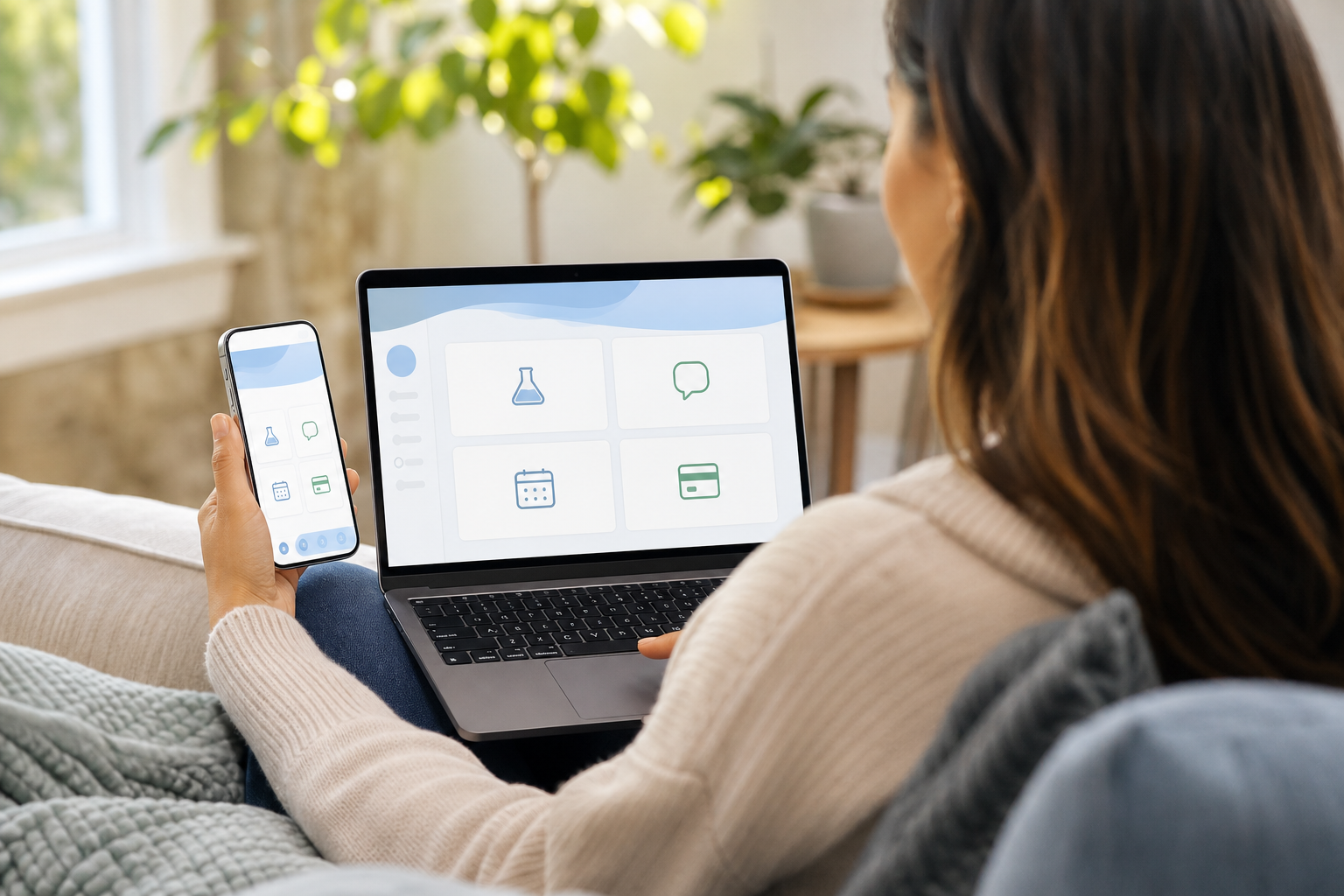
MyThedaCare is ThedaCare’s patient portal, powered by Epic MyChart. In plain terms, it’s a secure website and mobile app where you can see your medical info and talk to your care team. You get one place for results, messages, visits, and bills. Think of it as your health home screen.
Specifically, you can review lab and imaging results as soon as they’re shared. You can read your visit notes, see your care plan, and check vaccine records. In addition, you can send a non-urgent message to your doctor’s office, including photos if asked, so the team can guide you without a call back.
Furthermore, booking and managing visits gets easier. You can request an appointment, confirm date and time, add it to your phone’s calendar, and get reminders. As a result, you spend less time on hold and more time doing what matters. Bill pay is built in as well, so you can see past invoices, pay with a card, and download receipts for insurance or tax records.
For many people, the biggest plus is access to their full chart. You can download a summary of your health record, share it with a new specialist, or keep a PDF for your files. If you care for a child, parent, or partner, you can also request proxy access so their info shows under your login with clear labels.
Tip: A patient portal centralizes routine care tasks, but it’s not a substitute for emergency care. For life‑threatening symptoms, call emergency services.
A Quick Guide to “Using” vs “Messaging”
- Use the portal for non-urgent notes, refills, and follow-ups.
- Call the clinic for same-day needs or new severe symptoms.
- Call emergency services for chest pain, trouble breathing, or severe bleeding.
Across all these tasks, your guide using mythedacare is to log in, choose the right action (Results, Messages, Visits, or Billing), and follow the on-screen steps. Keep it simple and you’ll move fast.
Step-by-Step: How to Set Up and Navigate MyThedaCare
Getting started takes a few minutes. Then you’re set for years.
- Get your activation code
- At your visit, ask the front desk for a portal activation code on your after-visit summary.
- Or request a code online through the “Sign Up Now” flow.
- Tip: If you don’t see the email, check Spam and “Promotions” folders, then add the sender to your contacts.
- Create your account at the portal URL
- Go to the official MyThedaCare portal site and select “Sign Up.
- Enter your activation code, date of birth, and contact info.
- Tip: Use a long passphrase, not a short password. For example, four random words beat a single “complex” word.
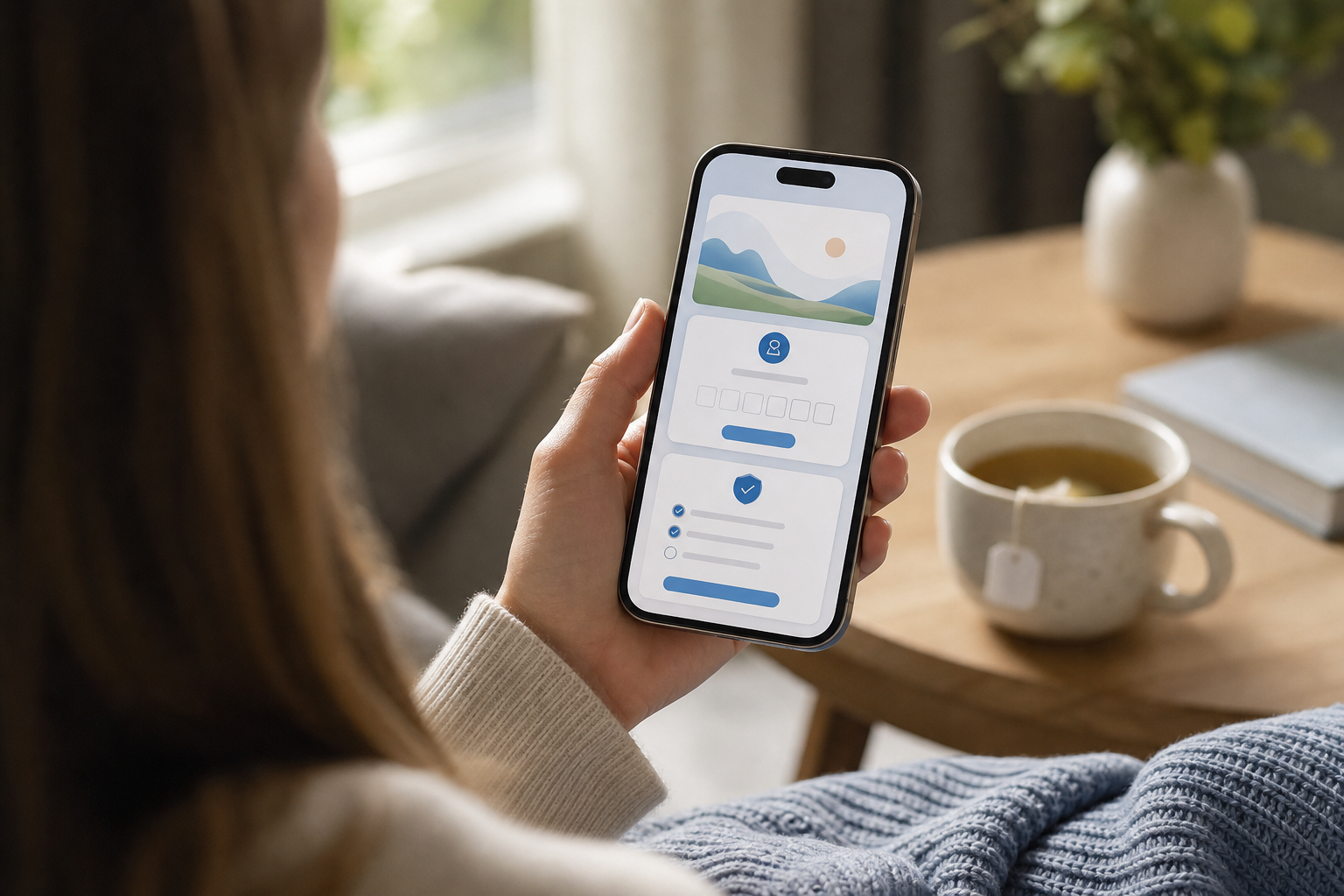
- Verify your identity
- You may be asked to answer questions or receive a code by text or email.
- This protects your records and confirms it’s you.
- Tip: Turn on two-factor authentication (2FA). It adds a 10-second step and blocks most account hijacks.
- Set up the mobile app
- Download the Epic MyChart app and choose ThedaCare from the list, then log in.
- Enable Face ID or a strong PIN for quick and safe access.
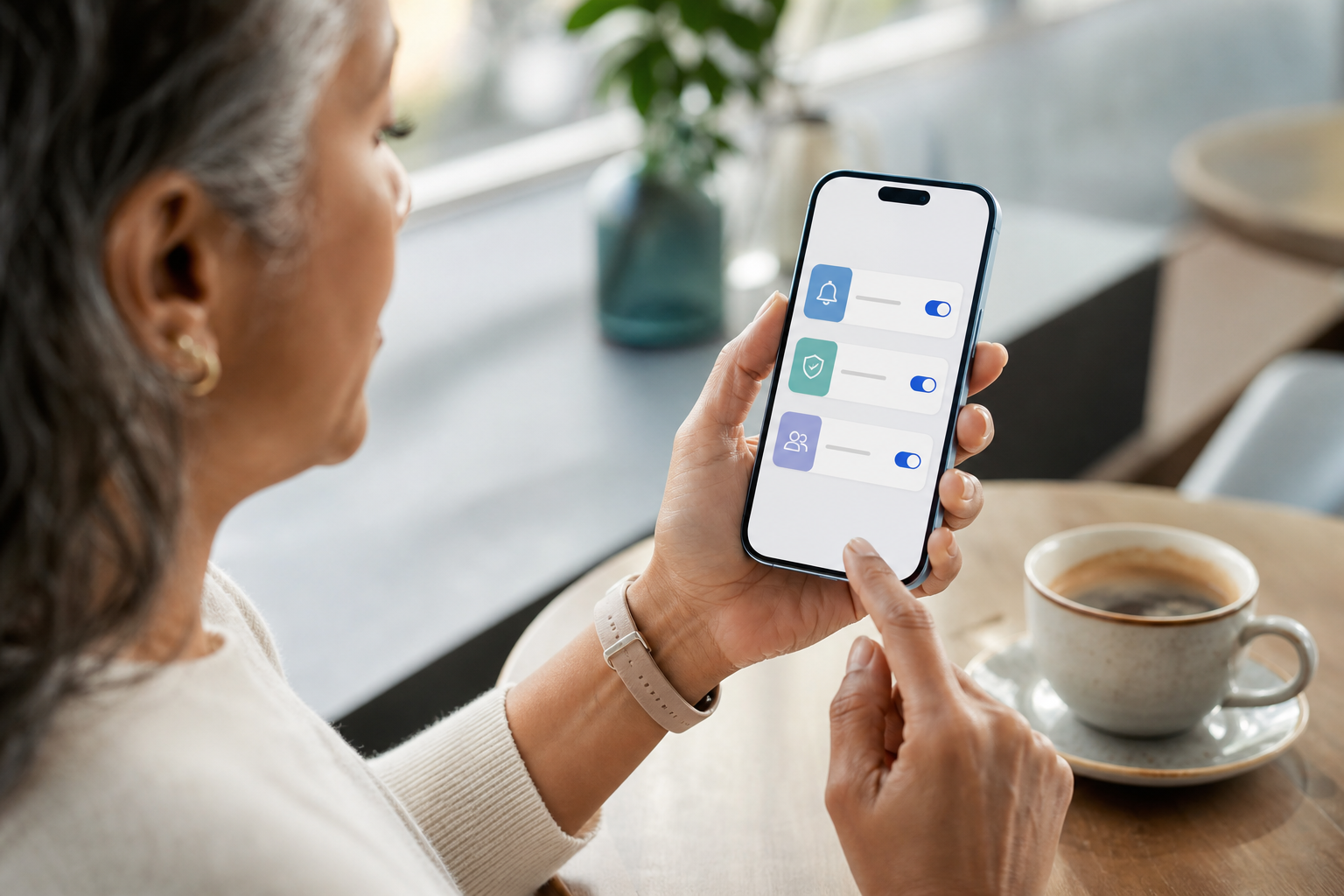
- Tip: Turn on push notifications for results, new messages, and appointment changes so you don’t miss time-sensitive updates.
- Link family members via proxy access
- From Settings, choose “Request Proxy Access” and follow the steps for a child, parent, or partner.
- You’ll see their records under your profile once approved.
- Tip: Label each proxy clearly (e.g., “Dad – Cardiology”) so you tap the right chart in a hurry.
Using MyThedaCare Day to Day
- Results: Open “Test Results” to see values, ranges, and your clinician’s note.
- Messages: Choose “Messages” for non-urgent questions; attach photos if guided.
- Visits: Tap “Appointments” to schedule, check-in online, or review instructions.
- Billing: Open “Billing” to pay, set up a plan, or download receipts.
With these steps, your guide using mythedacare becomes routine: sign in, scan the dashboard, and act. In 2026, the app makes most tasks two or three taps.
Also Read!
How to Set Up WhatsApp Patient Reminders for Your Small Clinic in India
Your Guide to Appointment Plus: What It Is, How It Works, and the Best Alternatives
Common Mistakes When Using Patient Portals Like MyThedaCare
Even savvy users miss small setup steps that cause big headaches. Here are frequent slip-ups and how to fix them.
- Forgetting to check Spam for activation emails: If your sign-up email doesn’t show, open Spam and “Promotions.” Then add the sender to contacts. Next time, it lands in your inbox.
- Not enabling notifications: Without push or email alerts, you won’t see new results or messages on time. Turn on app notifications and add an email alert for backup.
- Ignoring proxy access for dependents: If you care for a child or parent, ask for proxy now. Otherwise, you’ll scramble for data in a tough moment. Set it up while things are calm.
- Confusing portal messages with emergencies: Messages work for non-urgent needs. For chest pain, severe shortness of breath, or stroke signs, call emergency services right away.
- Skipping medication list updates: An old med list can lead to wrong refills or missed interactions. Open your med list monthly and remove what you no longer take.
Reminder: If a message thread shows “this inbox is not monitored 24/7,” treat time-sensitive issues by phone. Your care team would rather you call than wait.
A Small “Using” Checklist
- Turn on 2FA and notifications.
- Set proxy access for dependents.
- Update your med list monthly.
- Add your insurance card images.
- Log out on shared devices.
As you clean up these loose ends, your guide using mythedacare stays simple. Therefore, you’ll spend less time chasing paperwork and more time focused on care.
Tools and Platforms That Help You Manage Healthcare Online
The patient portal world has three big buckets. First, systems like Epic MyChart power branded portals such as MyThedaCare. Second, standalone personal health record (PHR) apps store data you enter by hand or import from files. Third, record aggregators pull your data from multiple systems into one view.
For day-to-day care, a health system’s portal is the most direct link to your clinic team. You can read visit notes, see orders, and message your doctor in the same place. Meanwhile, a PHR can help you store outside data, such as fitness logs or care from a clinic that doesn’t use the same EHR. Aggregators shine if you see different health systems and want one combined timeline.
If you run a clinic or hospital, tools like MedCore pair a unified EHR with a patient-facing app. According to MedCore’s published materials, the patient app includes a live queue/token display, lab reports, digital prescriptions with QR, and bill pay, matching the “Branded Android/iOS app for patients with live tokens and lab reports” and “Patient app with live queue, lab reports, prescription QR, and bill pay.” In addition, MedCore cites DPDP Act 2023 compliance, FHIR R4 support, and 24/7 uptime, plus deployments serving 150+ OPD patients per day and 55+ modules across care and admin. That mix helps providers serve patients and cut front‑desk calls.
“Our OPD wait time dropped from 40 minutes to 12. The live token display alone was worth the switch.” — Dr. Meera Rao, Medical Director, Asha Hospital
Moreover, a flat monthly price and a self‑serve onboarding wizard mean clinics can be live in days, not months. That matters if you’re part of the 75% of the market underserved by older tech and want modern tools without per‑bed or per‑user fees.
**See flat pricing now →
For patients, the takeaway is simple: use your portal for care tasks, and consider a PHR if you want a personal log too. For clinics, your guide using mythedacare shows what patients now expect in 2026: fast results, clear messages, and mobile-first tools.
What to Do Next: Getting the Most From Your Patient Portal
Small steps today pay off all year. Here’s a short plan you can finish in under 30 minutes.
- Download the mobile app today and turn on Face ID and notifications.
- Book a low-stakes test appointment, like a flu shot or a nurse visit, so you can try online check-in.
- Review your medication list, allergies, and pharmacy info; remove items you no longer take.
- Set up a family member’s proxy access before you need it. Label each proxy clearly.
- Opt in to lab result alerts and email summaries so you see updates even if you miss a push alert.
In addition, take five minutes to add your insurance card images in Billing. Therefore, you’ll check in faster and avoid typing long ID numbers. Next, add the portal URL to your phone’s home screen for one-tap access.
As you follow this plan, your guide using mythedacare becomes muscle memory: open, scan, act. By the next visit, you’ll check in online, spot results as they post, and keep messages tidy.
Key Takeaways
- MyThedaCare, built on Epic MyChart, gives you results, messages, visits, and bills in one secure place.
- Turn on 2FA and notifications, and set proxy access now so you’re ready when it counts.
- Use messages for non-urgent needs; for emergencies, call your local emergency number.
- For providers, tools like MedCore bundle a patient app with a unified EHR, FHIR R4 support, and DPDP Act 2023 compliance.
- In 2026, patients expect mobile-first access and clear, fast updates—meet those needs with strong portal habits and modern tools.
What to Do This Week
Spend 10 minutes to log in, enable notifications, and scan your med list. Then schedule one simple appointment and try online check-in. Finally, set up one proxy. With those moves, your guide using mythedacare will feel natural, and your next visit will run smoother.